

Your thumbnail is your branding.
Your audience will see your thumbnail before watching your videos. If your thumbnails use random colors, fonts, and images, then your content won’t seem connected to your brand. Using the same visual style across your thumbnails lets your audience easily recognize your videos and know what to expect.
In this article, we will look at how to choose the right video frame, design your thumbnail to match your brand, and how to use Vmake Labs to turn your selected frame into a video thumbnail.
Thumbnails Belong to the Campaign
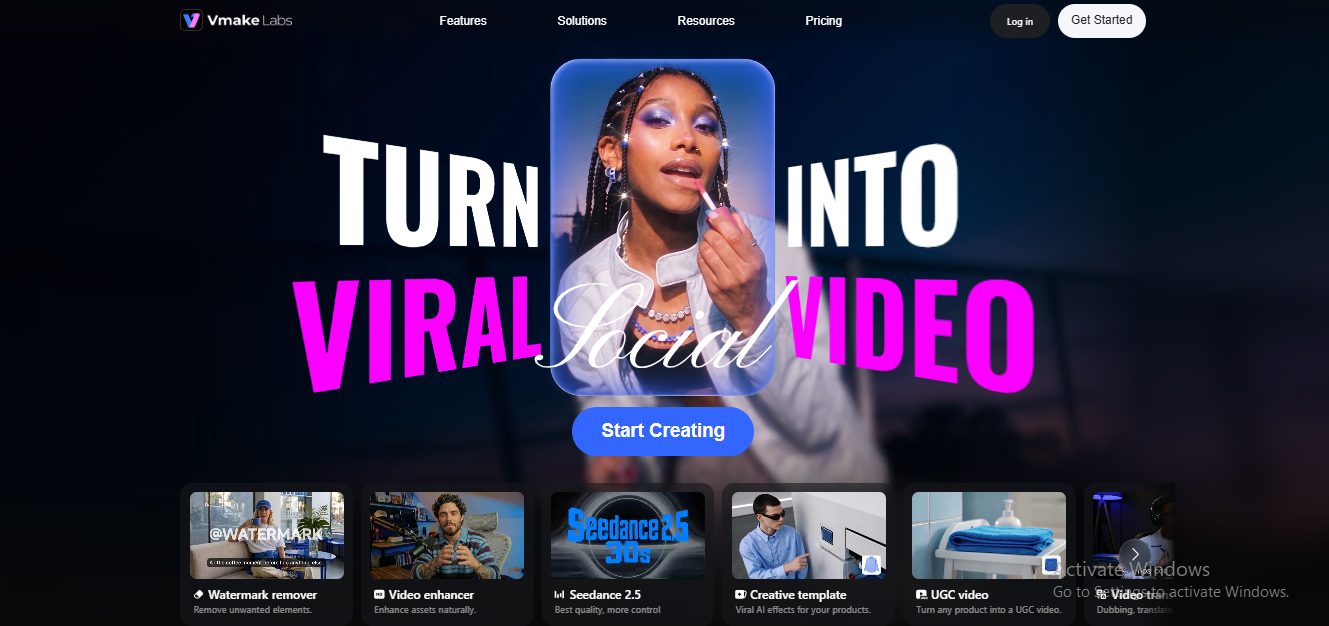
While thumbnails may seem like a last-minute addition to your content, they are actually the first part everyone will see when looking at your video. Vmake Labs treats it that way. As an AI social video studio, it links videos with other campaign elements, including thumbnails. This tool will help you make a cover fast. However, consistency will always come from having a clear message, authentic source material, and human oversight.
Find the True Moment First
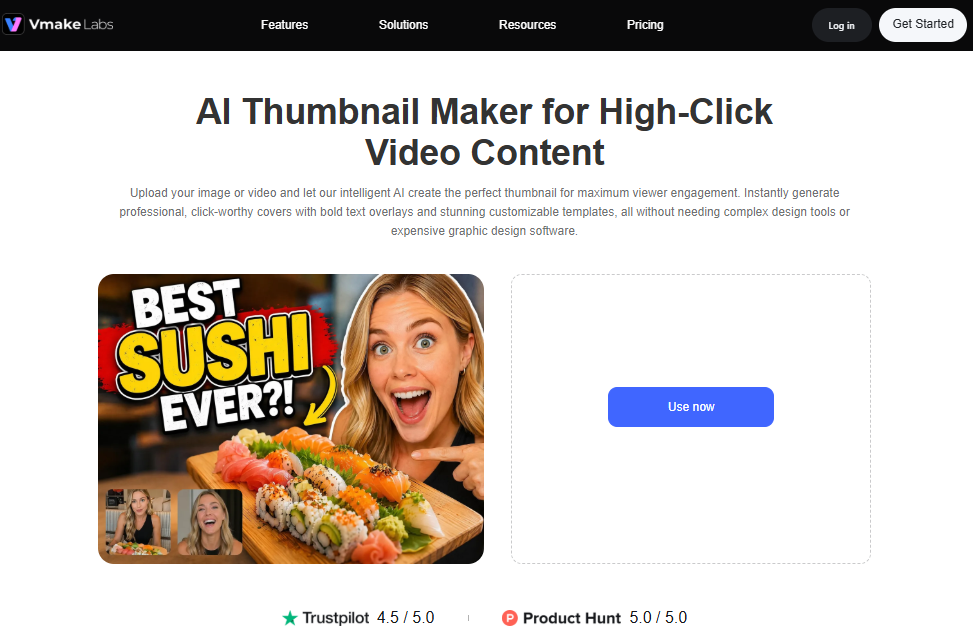
Watch through your video again and identify the best moment. This could be a moment that grabs people’s attention, shows the benefit, or shows your product in action.
Don’t come up with a catchy headline and then try to find a suitable image. If it isn’t shown within the video, then don’t include it in your thumbnail. You will be creating false clicks.
Keep it simple:
- One moment: The exact point where your product works, your reaction appears, or the result becomes visible.
- One benefit: Focus on the main benefit rather than trying to highlight several benefits at once.
- One line of text: Three to six words maximum that must be clear to see on a mobile phone.
For example:
- The video demonstrates how a foundation is mixed in 5 seconds: Your thumbnail title can be “Mixes in 5 Seconds!”
- The video features a before-and-after picture of a serum: Your thumbnail title may be “7-Day Glow!”
- The video captures the real unboxing process: Your thumbnail title can be “What’s Actually Inside?”
If you cannot really use such a one-liner to describe your video content, then it means you have not found your moment yet. Keep scrubbing.
Is the Source Sharp Enough?
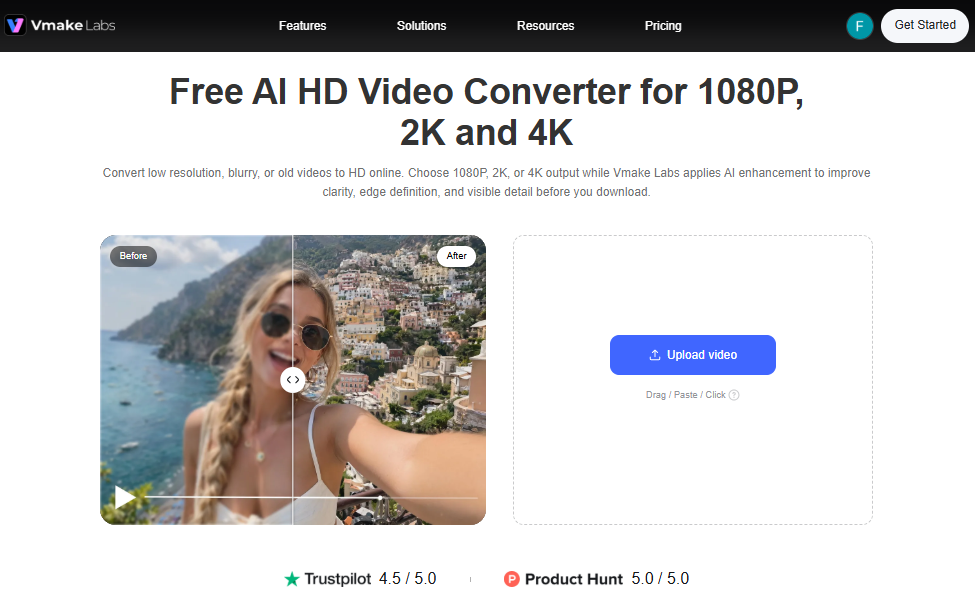
This step is optional. If the source you’ve selected is already sharp, then skip to the next one. If not, then you could either use a different part of the video or convert it into high definition by using the HD video converter and check the results. A larger file will often be clearer. However, a bigger file doesn’t necessarily contain more detail.
Remember that the video converter only prepares your source. It doesn’t create thumbnails.
Building the Cover
Vmake Labs has a thumbnail creation feature that helps you turn a video frame into a cover for your social media post. The process is simple. Open AI Thumbnail Maker. You’ll find two ways to create thumbnails: one is using the Upload Images / Video for Thumbnail, where you have to either upload an image or video, or you can use the template.
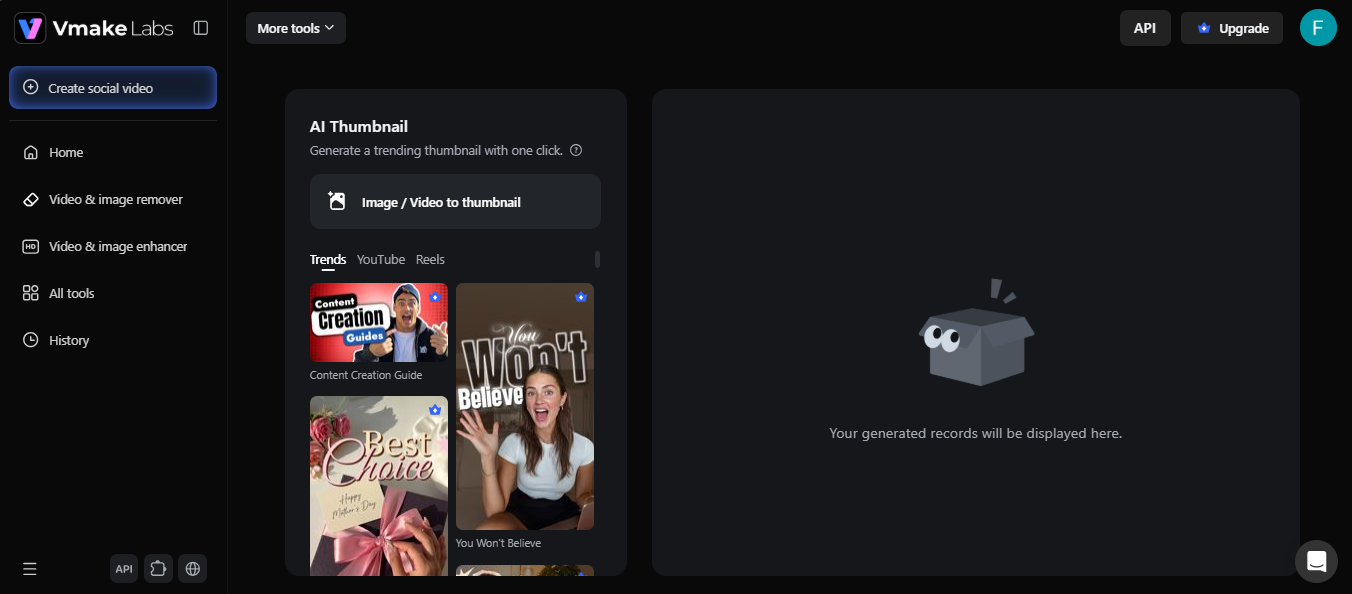
There are various templates available in three categories: trends, YouTube, and reels. Browse them to see if anything suits your needs. If you don’t want to create a custom design, starting with a template is easier.
After your video loads, take time to select the proper frame from your video. You can choose the first frame as the thumbnail; usually, people do that. However, it is always worth checking a few others before deciding.
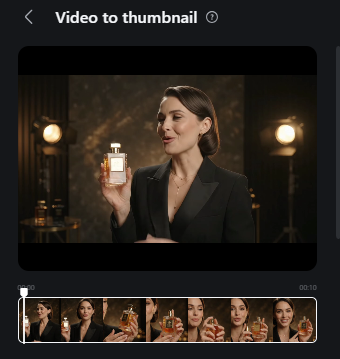
Use the timeline at the bottom of your screen to move through the video. Look for a frame where the person’s face is visible, and the product is in focus. And there’s enough space for your title to add without covering the face or product. Avoid blurry frames or those with distracting backgrounds.
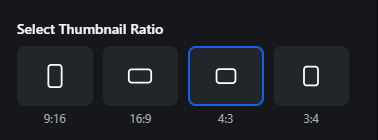
Next, set the aspect ratio before adding your title, as changing it later may require further adjustments.
- 9:16: TikTok and Instagram Reels
- 16:9: YouTube thumbnails
- 4:3 or 3:4: Other formats, if needed
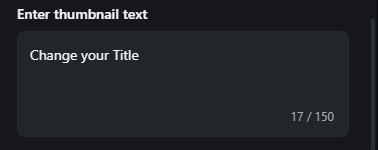
Then, you will see the Change Your Title box. Here, you have to add your thumbnail copy (title). You can use up to 150 characters, but a much shorter copy is usually enough. Aim for three to six words that sum up your video and make people want to stop scrolling.
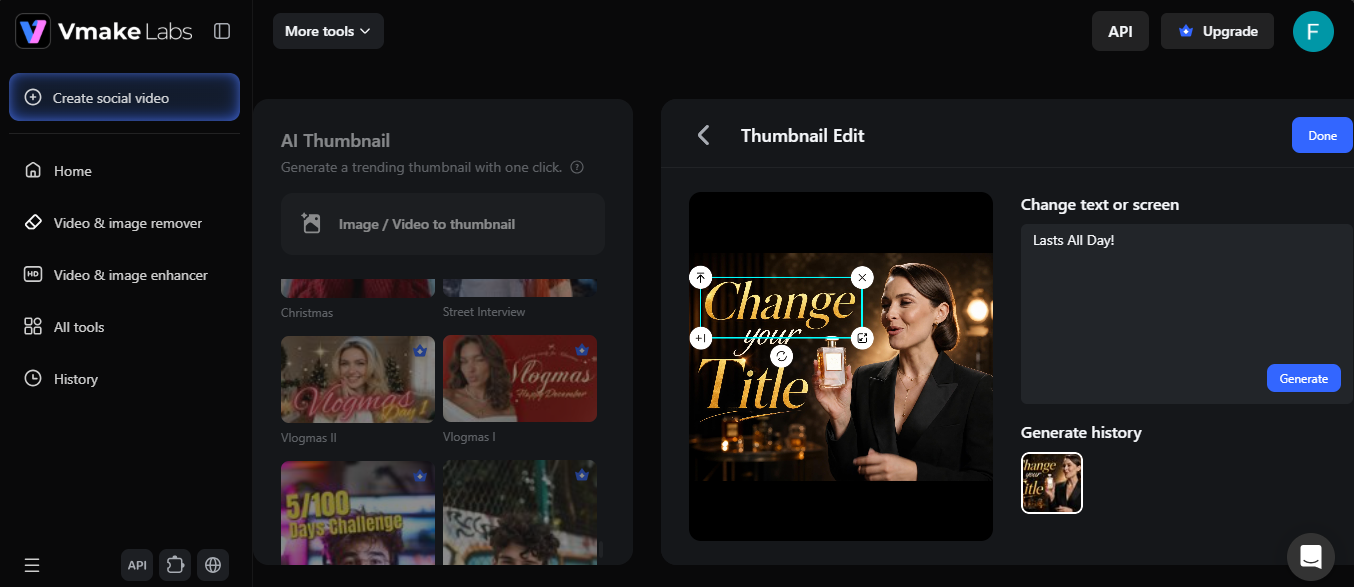
Finally, click on “Generate Thumbnail” to create your cover. Once your thumbnail is ready, check if the overall design is in line with your video.

Also, check how it looks at a smaller size. Most people will see it while scrolling, so the main subject and title should be easy to recognize at first glance without zooming in. If either one gets lost, adjust the layout. Or shorten the text before downloading your final version. Even a small change can make a difference.
Final Words: Make Every Thumbnail Match Your Brand
Thumbnail helps the audience get an idea about the content of the video even before they click on it. Stay truthful in your message, have a cohesive visual style, and select an appropriate frame showing either the product or the result of the process. A complex design is not required. Sometimes a couple of relevant words and images suffice.
Always refer to your brand guide when designing a new cover. Thumbnail Maker by Vmake Labs can help you turn a video frame into a ready-to-use thumbnail, but always check the final result before publishing. Your thumbnail cover should look like part of your brand and give viewers a reason to watch the video.
About Author
